
Telehealth connection support
Joining a video call. Allowing camera and microphone permissions
This guide provides a step-by-step process to join a session using a web application. It outlines the necessary configurations required to ensure both microphone and camera are set up correctly in your browser. Follow these instructions to troubleshoot any initial setup issues and successfully join your session.
Step 1
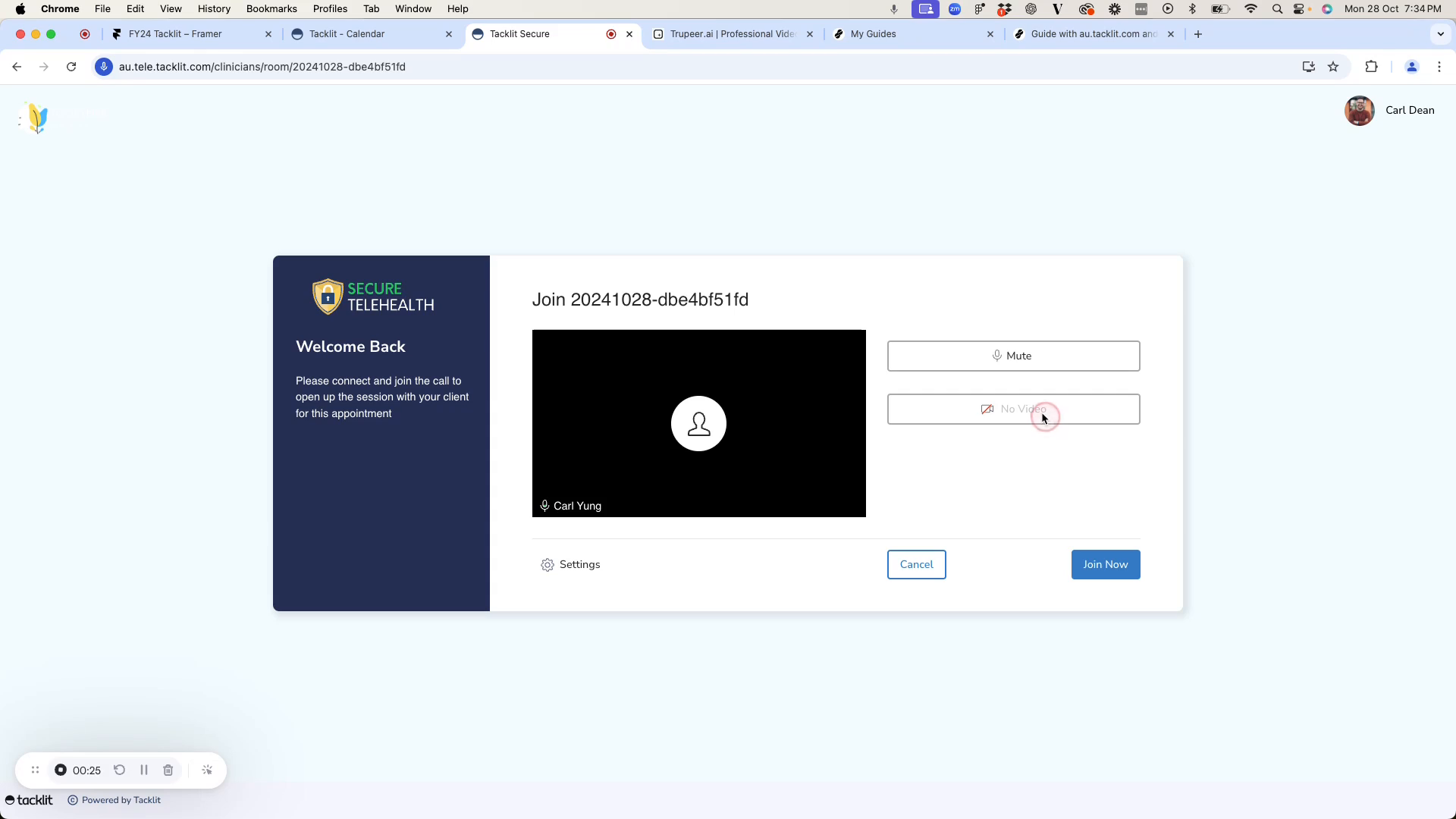
Begin by accessing the session entry screen. Upon clicking the session link, you will be directed to the setup page. Here, ensure that your microphone is connected. If you notice that the video is not functioning, it may be due to your browser not granting permission for video access.
Step 2
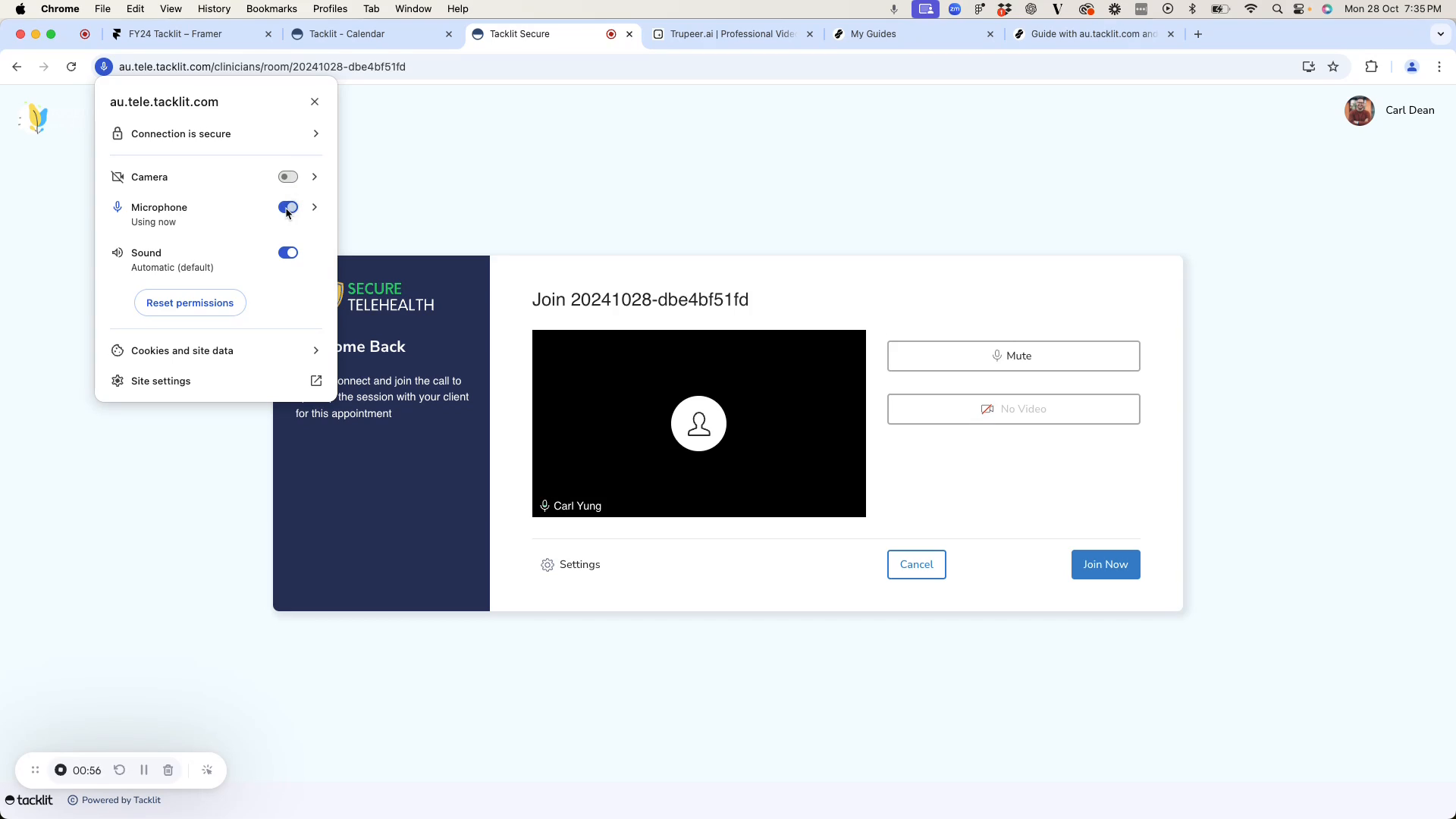
To resolve this issue in Chrome, locate the small icon adjacent to the URL. This icon contains site information, including security status and application permissions. Verify that your microphone permissions are enabled.
Step 3
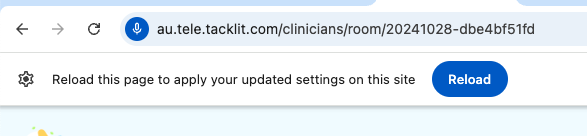
Ensure both your microphone and camera permissions are enabled. If the camera is disabled, toggle it on. Once activated, exit this settings menu. You will then receive a prompt asking you to reload the page for the setting to take effect.
Step 4
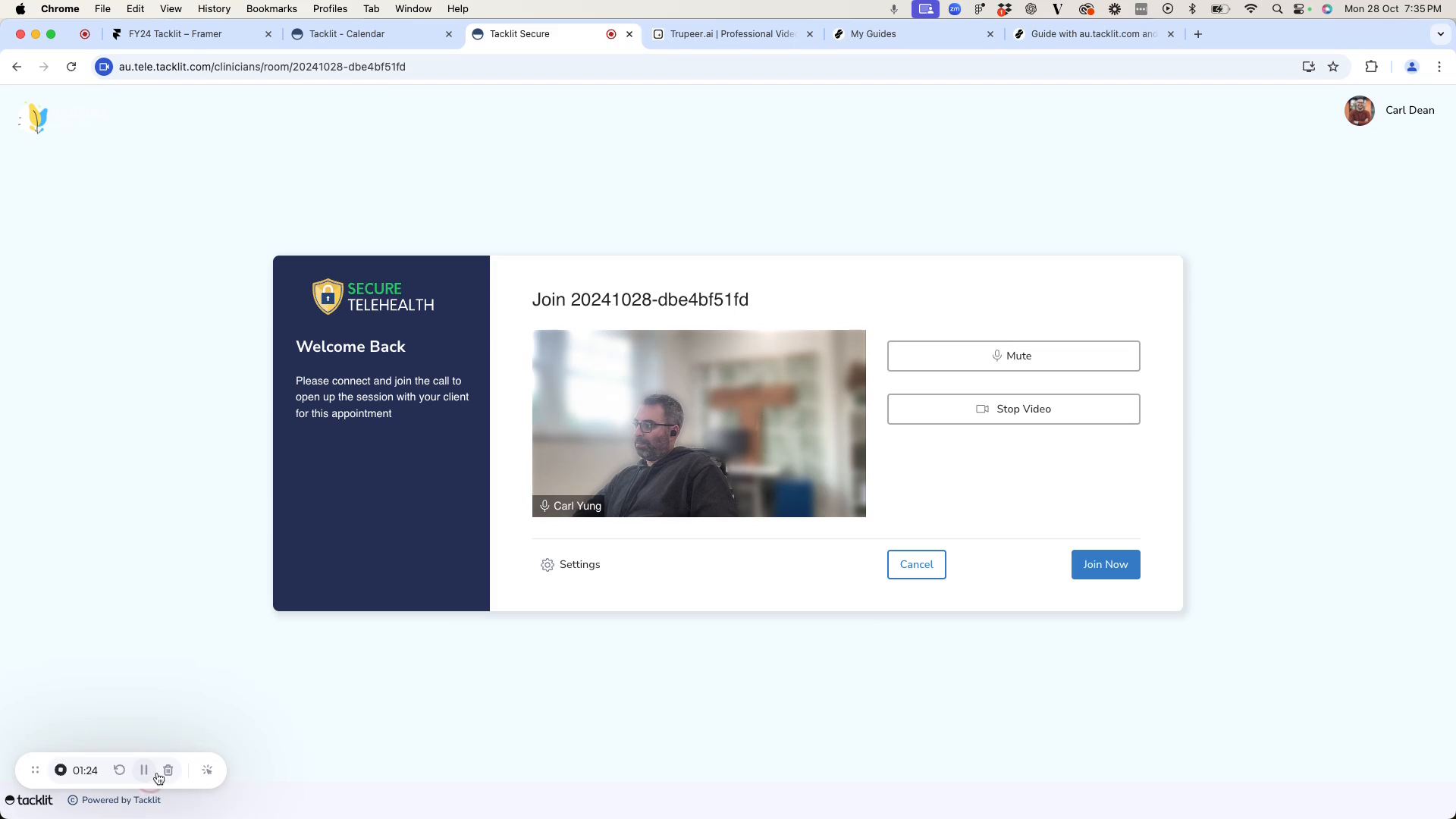
This action will grant access to the session room. With the microphone and camera properly configured, you are now prepared to join the session.
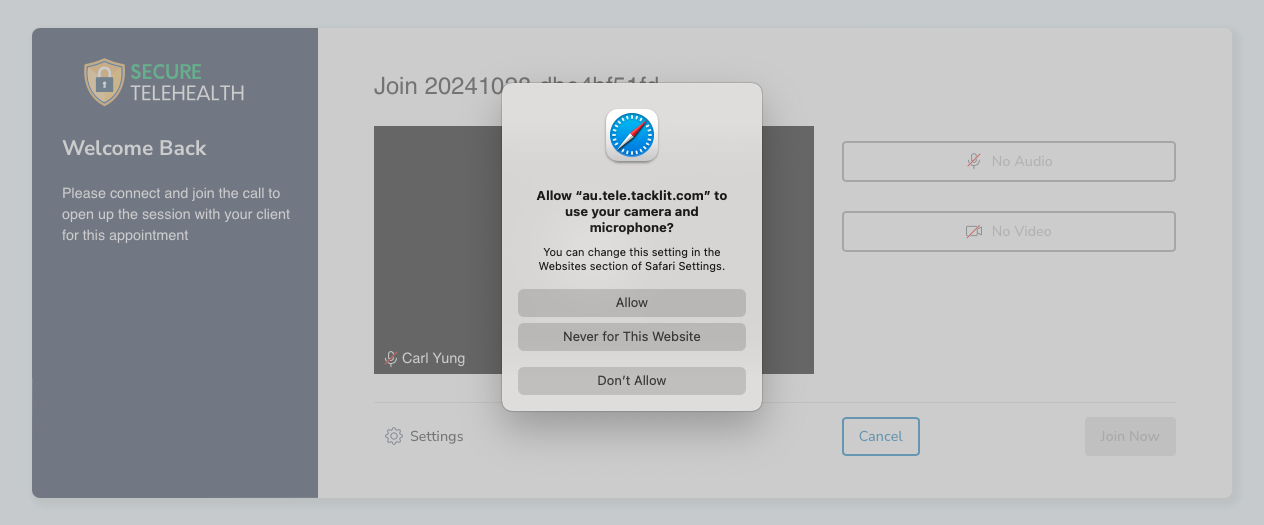
In Safari the experience is slightly different. When I load the page you will see the prompt to enable the camera and mic. If you miss click and don't allow, you can just refresh the page and the prompt will appear again.
You can find further advice in our setup guide here: https://tacklit.helpscoutdocs.com/article/365-telehealth-set-up